I'm not an engineer. I built an API gateway lab anyway.
A Customer Success walkthrough of a small Kong lab on a laptop: fake customer accounts, a security desk, rate limits, and the mistakes that made the product make sense. Plus an interactive explainer you can play with.
Kong
OrbStack
Node.js
Why I did this
When I began thinking about my next role, I had a clear plan. Before applying anywhere, I would finally build the technical foundation I had been curious about for four or five years. Learn first, then search.
That raised a fair question: what do I actually mean by “technical”? For a long time, I equated it with code. Today I see it more broadly. It’s the ability to think in systems, to understand what happens behind a single click, and to see how the individual parts of a product depend on each other. It’s also a field where learning never really stops. Curiosity can thrive in any role, of course. In technical work, though, it seems to be part of the job description.
The interest wasn’t new. I have always worked in customer-facing roles, and I genuinely enjoy them. Yet whenever a customer ran into a technical problem, my instinct was to investigate and solve it myself rather than hand it over to engineering.
So I started with the plan. My first technical project was building my own website. It was challenging in the best way, and I enjoyed every part of it.
By then I knew what I wanted next: both, integrated. A customer-facing role in Customer Success and the technical side, at a company building infrastructure in data, AI, observability and security, the mission-critical services that so many businesses quietly depend on.
Then, on LinkedIn, one name caught my attention immediately: Kong. They build the layer that sits at the front door of how software talks to software, deciding who gets in, how often, and where each request goes. First for APIs, and now for AI and events too. It’s quiet, mission-critical infrastructure, exactly the kind of complex product I wanted to understand from the inside.
My plan still held: learn first. I didn’t want to walk into a possible conversation with Kong knowing their product only from a website. So I built a small lab on my own laptop. This post documents that lab, mistakes included. It’s for anyone who has ever felt that the technical side of their work belongs to someone else. It doesn’t have to.
Short on time? Play with it first
Once the lab worked, I wanted a way to explain Kong without a single Terminal window. So I turned everything I learned into an interactive explainer: Kong in Motion.
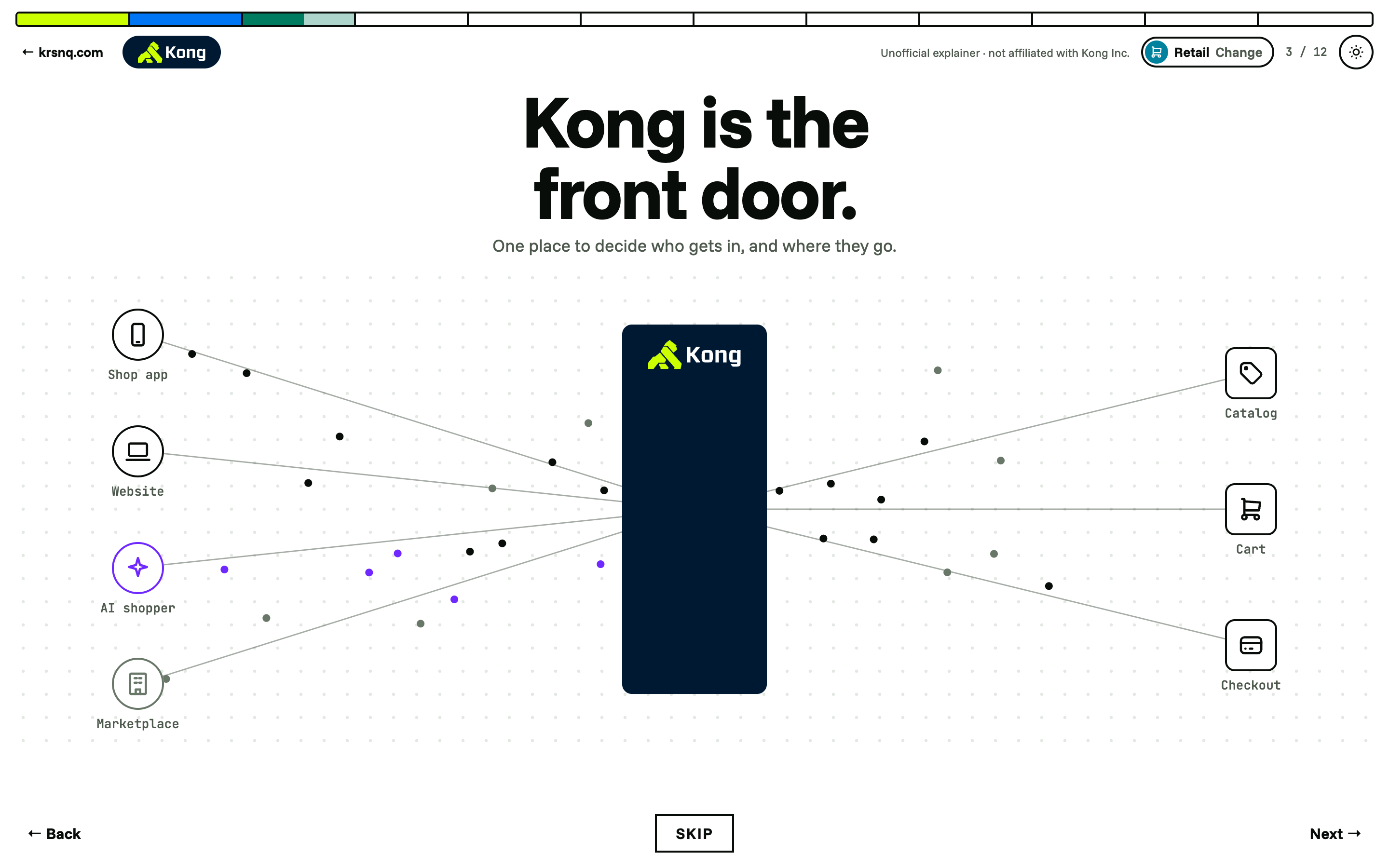
Twelve short steps. Every dot is an API call. You start by picking an industry (healthcare, retail or financial services), and the story is told with the traffic you would actually see there. You watch the calls flow through Kong, stack plugins like layers, and then fix four real problems yourself: a bot attack, a traffic rush, an AI leaking sensitive data, and a dashboard you can’t see.
Open Kong in Motion → It takes about three minutes and works on your phone.
If you’d rather see how it works under the hood, keep reading. The rest of this post is the hands-on lab behind it.
First, what does Kong even do?
Here’s the picture that finally made it click for me.
Think of a company as a big office building. Inside are lots of departments: accounts, payments, customer data. Apps and partners constantly need things from those departments. Every time they ask, they knock on a door. In tech, that door is called an API.
Now imagine thousands of doors with no security. Anyone walks in, takes what they want, and crowds the hallways until nothing works.
Kong is the security desk at the entrance. Every visitor goes through it first. The desk checks your badge, decides how often you can come in, sends you to the right department, and writes everything down in a visitor log.
The desk is run from a head office called Konnect. That’s a website where you set the rules and look at the logs. The actual guard standing at the door runs somewhere else, in my case on my own laptop.
That’s it. That’s the whole idea. Everything below is me building a tiny version of this building.
What you need
I did everything on a Mac. You don’t need to know how to code. You do need to be okay with typing a few commands into Terminal and not panicking when something goes wrong.
- OrbStack (free for personal use). This lets you run programs like Kong inside little boxes called containers. Docker Desktop does the same job, but OrbStack is lighter, which mattered because my laptop doesn’t have much space.
- Node.js, the LTS version from nodejs.org. It runs the fake backend we’ll build.
- A free Kong Konnect account from konghq.com. Mine came with a 30-day trial.
- About two to three hours, including the time you’ll spend being confused. That part is normal.
Two words you’ll see a lot: localhost just means “my own computer,” and a port (like 3000 or 8000) is like a room number on it.
Step 1: Build something worth protecting
I didn’t want to test Kong on some random sample API. I wanted data that means something to me. So I made up five customer accounts, the kind a CSM looks at every day: health scores, renewal dates, yearly revenue, which products they use. I called the project CSM Pulse.
Create a folder on your Desktop called csm-pulse. Open Terminal, type cd followed by a space, drag the folder into the window and press Enter. Then paste this whole block and press Enter. It creates a file called db.json with the customer data:
cat > db.json << 'EOF'
{
  "accounts": [
    { "id": 1, "name": "Gulf National Bank", "industry": "Banking", "arr_usd": 450000, "health_score": 82, "renewal_date": "2027-03-31", "status": "healthy" },
    { "id": 2, "name": "Desert Air Logistics", "industry": "Transportation", "arr_usd": 180000, "health_score": 54, "renewal_date": "2026-12-15", "status": "at-risk" },
    { "id": 3, "name": "Emirates Health Group", "industry": "Healthcare", "arr_usd": 320000, "health_score": 71, "renewal_date": "2027-06-30", "status": "watch" },
    { "id": 4, "name": "Oasis Retail", "industry": "Retail", "arr_usd": 95000, "health_score": 90, "renewal_date": "2027-01-20", "status": "healthy" },
    { "id": 5, "name": "Falcon Telecom", "industry": "Telecom", "arr_usd": 610000, "health_score": 38, "renewal_date": "2026-11-30", "status": "at-risk" }
  ]
}
EOF
Now turn that file into a working API with one command:
npx json-server db.json --port 3000Open http://localhost:3000/accounts in your browser. There are your five customers.
Leave this Terminal window open. It’s the door. Close it and the door disappears.
And notice something uncomfortable: anyone can see this data. No password, no limits, nothing. That’s the problem we’re about to fix.
Step 2: Hire the security guard
Sign up for Konnect, then create a Personal Access Token in your account settings. It’s a long code starting with kpat_. Konnect shows it only once, so paste it into your Notes app straight away. Treat it like a password.
Open a second Terminal window (Command + N) and run these two lines, with your own token in the first:
export KONNECT_TOKEN='your-token-here'
curl -Ls https://get.konghq.com/quickstart | bash -s -- -k $KONNECT_TOKEN --deck-output
This is Kong’s official quickstart. It downloads Kong, starts it on your laptop, and connects it to your Konnect account. Lots of text scrolls by. Just wait.
My first surprise: I went back to Konnect and saw nothing. No gateway, nothing. I was sure I had broken something.
I hadn’t. When I signed up, I chose Europe as my region. The quickstart puts everything in the US region by default. Konnect only shows one region at a time. One click on the globe icon in the top-right, switch to US, and there it was: a control plane called quickstart, with my laptop connected to it.
If you open http://localhost:8000 now, you’ll get a message saying no route matched. That sounds like an error, but it’s good news. The guard is on duty. It just doesn’t know where to send anyone yet.
Step 3: Put the security desk in front of the door
Everything from here happens by clicking in Konnect, inside the quickstart control plane. You need to tell Kong two things.
Where the data lives. Go to Gateway services and create one:
- Name:
csm-pulse - URL:
http://host.docker.internal:3000
That odd-looking address is how Kong, running inside its container, reaches the “door” on your laptop.
Which path visitors use. Go to Routes and create one called accounts, attached to csm-pulse, with the path /accounts.
Here I got stuck twice, so let me save you the trouble.
First, the Basic route setup only allows HTTPS, the secure version of web traffic. My local lab uses plain HTTP, so Kong kept rejecting me. The fix is to pick Advanced instead and set the protocols to HTTP, HTTPS.
Second, turn Strip Path off. When it’s on, Kong cuts /accounts off the request before passing it along, and the backend no longer knows what you asked for.
Now open http://localhost:8000/accounts. Same five customers as before. The only difference is the number: 8000 instead of 3000. You’re not walking straight through the door anymore. You’re going through Kong.
It felt like nothing had changed. But this is the moment everything else becomes possible.
Step 4: Check everyone’s badge
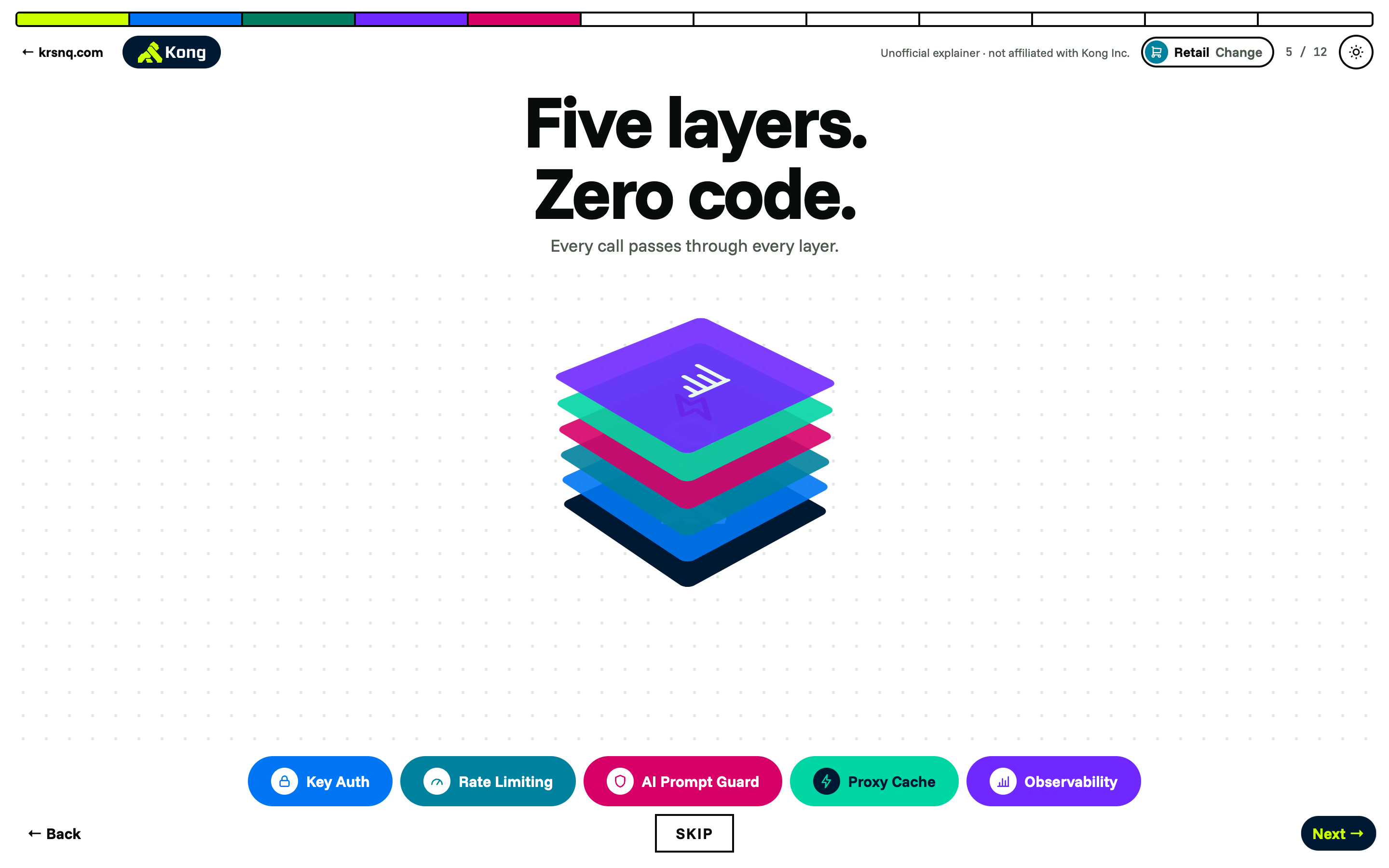
Kong’s features come as plugins. You switch them on like apps on a phone. No code.
I like to picture them as layers stacked on top of the gateway. Every call passes through every layer, and each layer has one job.
Open Gateway services → csm-pulse → Plugins, add Key Authentication, leave the defaults and save. Wait half a minute and refresh http://localhost:8000/accounts.
No API key found in request.
I actually said “yes!” out loud at this point. My data was protected.
Next, create two visitors. In Konnect these are called consumers. Go to Consumers and add:
partner-appwith the keypartner-key-456. Think of an outside partner using your data.internal-dashboardwith the keydashboard-key-123. Think of your own company’s reporting tool.
To show your badge in the browser, add it to the end of the address: http://localhost:8000/accounts?apikey=partner-key-456
My second surprise: instead of five customers, I got []. An empty list.
It took me a while to understand this one, and it’s my favorite part of the whole lab. Kong had accepted my key and let me in. But it also passed the key along to the backend. My little json-server treats anything after the ? as a search filter. So it went looking for customers whose “apikey” was partner-key-456. None, obviously.
The fix is a checkbox in the Key Authentication plugin called Hide credentials. With it on, Kong checks the badge and then removes it before the request goes further. The backend never sees the secret key at all.
I had read about features like this before and skimmed right past them. Running into the problem myself is what made me understand why it exists: secret keys that travel further than they need to can end up in logs, and logs leak.
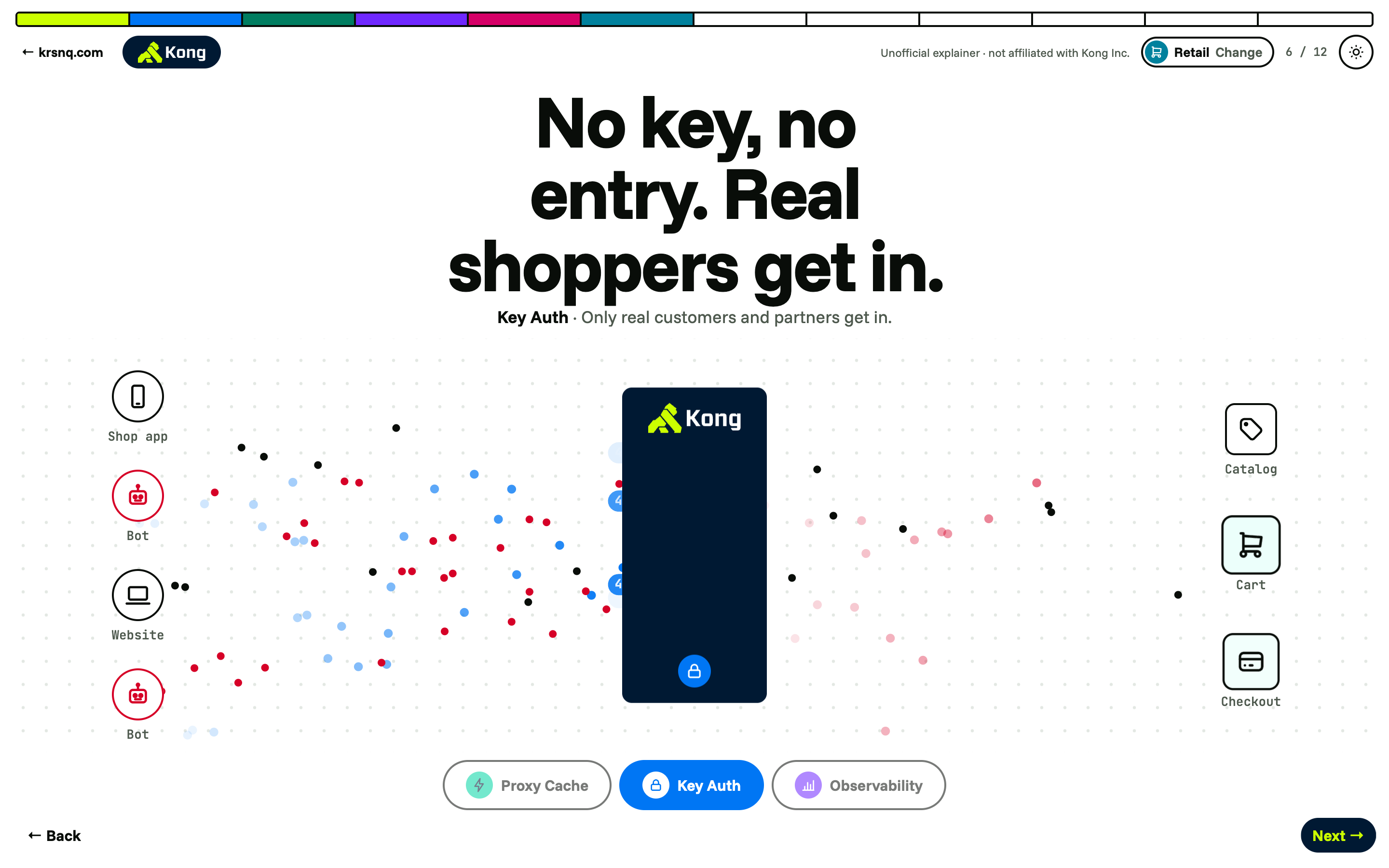
In Kong in Motion, this step becomes a bot attack. Bots flood your services until you switch on Key Auth. Then they bounce off the gateway, because no key means no entry.
Step 5: A free plan and a premium plan
This is where it started to feel like a real business.
Open the partner-app consumer, go to its Plugins tab and add Rate Limiting. Set Minute to 5 and Policy to local. Then do the same on internal-dashboard, but with 100.
Now go to the partner’s address and refresh quickly. Five times, you get the customers. The sixth time:
API rate limit exceeded.
Switch to the dashboard’s key and refresh as much as you like. It keeps working.
Same data. Same API. Two completely different sets of rules, and I didn’t write a single line of code. That’s how companies protect their systems from being overloaded. It’s also how they sell access in tiers. A partner who keeps hitting the free limit is a partner who might pay for more.
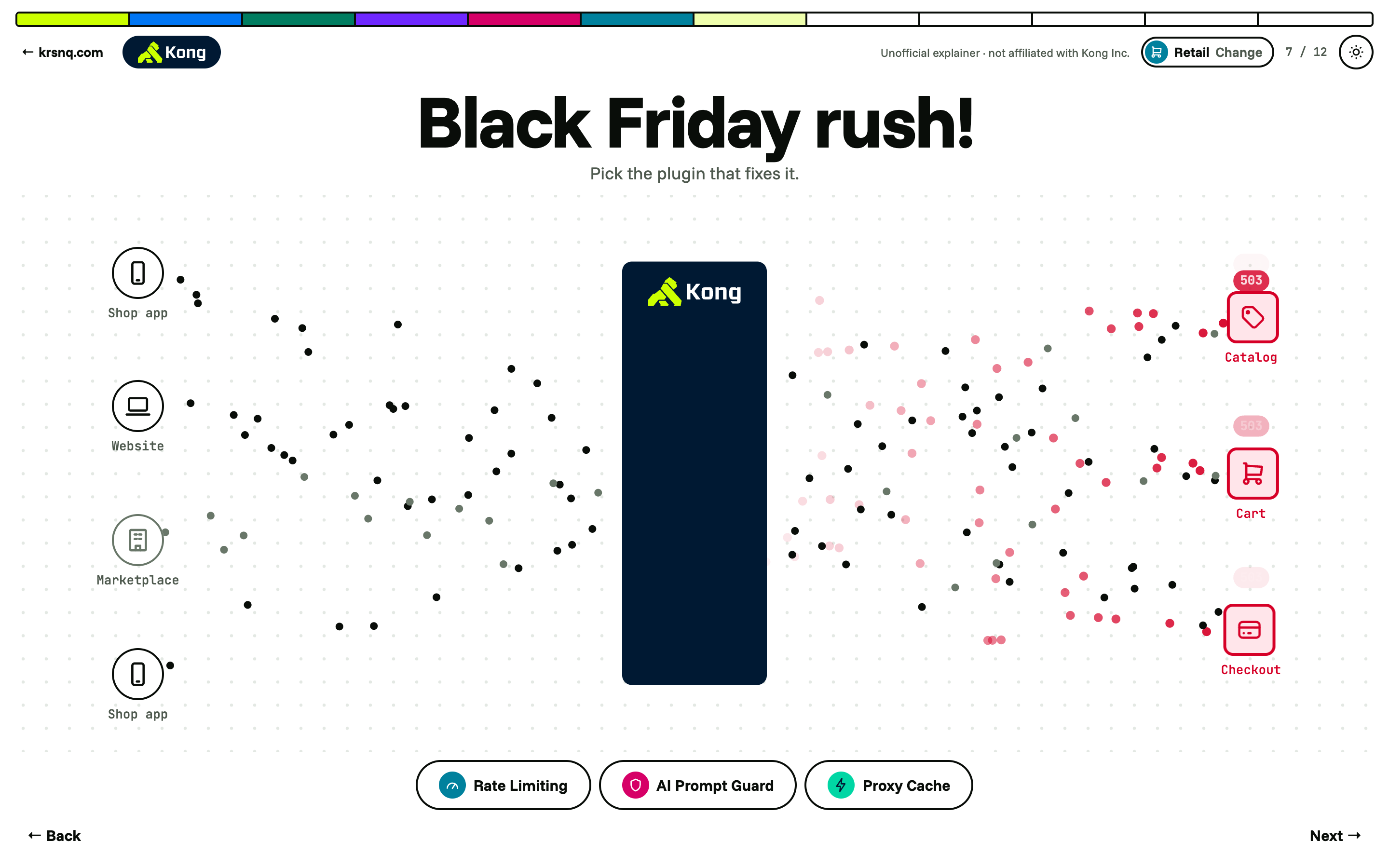
Here’s what happens without a limit. In the Black Friday scenario, traffic triples and every service starts failing with 503 errors. Rate Limiting is one fix. Proxy Cache is the other, and seeing both work side by side taught me there’s rarely only one right answer.
Step 6: Read the visitor log like a CSM
For this part, I wanted some traffic to look at. So I refreshed with the dashboard key a bunch of times, pushed the partner past its limit, tried with no key, and tried with a fake key (?apikey=hello123).
Then I opened Observability → Explorer in Konnect, chose a Donut chart, and set it to show Request count by Status code. Kong had handled 135 requests that afternoon. Each status code is a decision Kong made:
- 200: let in. Roughly 85% of my traffic.
- 401: turned away for a missing or fake badge. Roughly 12%.
- 429: blocked for coming too often. Roughly 3%.
One tip: if your chart says “No data,” check the date range. I came back the next day, left it on “Last hour,” and stared at an empty screen for a bit.
Then I changed the chart to show requests by Consumer. The internal dashboard made most of the calls. The partner made far fewer. And a grey slice labelled “empty” showed visitors Kong couldn’t identify, because they never showed a valid badge.
This is the part that connected everything for me. I stopped seeing a chart and started seeing customer conversations:
- A partner keeps hitting its limit. They need more than their plan gives them. That’s an expansion conversation.
- Requests are failing without valid keys. Maybe a partner set up their integration wrong and needs help. Maybe someone is trying to get in who shouldn’t. Either way, worth a call.
- The internal dashboard uses the API heavily, with no errors. That’s healthy adoption, and a good story for the next business review.
- If a big consumer suddenly went quiet, I’d want to know before the renewal, not after.
The technical part tells you what happened. The customer success part is asking why, and what to do about it.
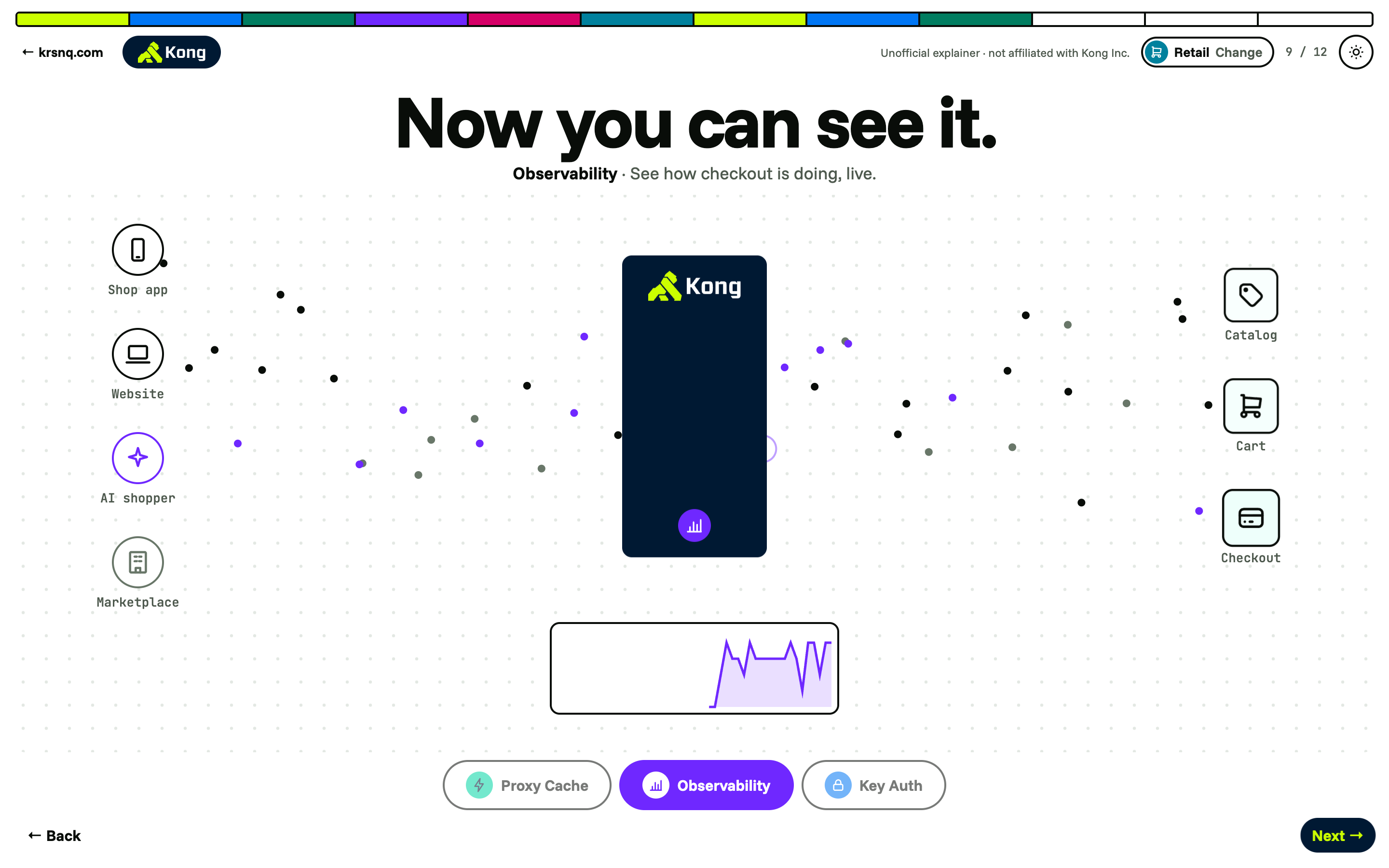
That’s also why the last scenario in Kong in Motion starts with a blurred-out chart and one question: Is everything OK? Until something measures the traffic, nobody can answer it. Not the engineer, and not the CSM.
What I’d tell anyone who wants to get more technical
You don’t need to become an engineer. I still couldn’t build Kong. But I can now explain what it does, why a company pays for it, and what the data tells you. For a customer-facing role, that’s the part that matters.
Build something tiny with data you care about. Using fake customer accounts instead of a random sample API made every step mean something. When Kong blocked the partner, I wasn’t looking at an error code. I was looking at an upsell.
The mistakes are the lesson. The wrong region, the HTTPS setting, the empty list. Each one felt like failure in the moment. Each one taught me something I’d never have picked up from reading the docs. If you get stuck, that’s not a sign you’re in the wrong place. It’s a sign you’re learning.
Translate everything into plain words. If you can’t explain it with an office building and a security desk, you probably don’t understand it yet. And if you can, you’re already better at explaining it than a lot of people.
Then teach it back. Building the lab taught me how Kong works. Turning it into Kong in Motion taught me how to explain it. Every time I had to cut a sentence down to a headline, I found out what I actually understood.
Ask for help without embarrassment. I asked a lot of questions, took a lot of screenshots and read a lot of error messages out loud. Nobody learns this alone.
Want to see the result? Play Kong in Motion, or browse everything I’ve built on the Labs page.